

WordPress maintenance is one of the most important aspects of running a stable, secure and high-performing website. Many issues that websites face are not caused by the platform itself, but by poor maintenance practices.
A properly maintained WordPress website stays secure, performs better and avoids unexpected downtime. If you want a broader introduction to the platform itself, you can also read our guide on What Is WordPress and Why Businesses Choose It in 2026.
In this guide, we will go through what actually matters and how to handle updates safely.
Table of Contents
Why WordPress Maintenance Matters
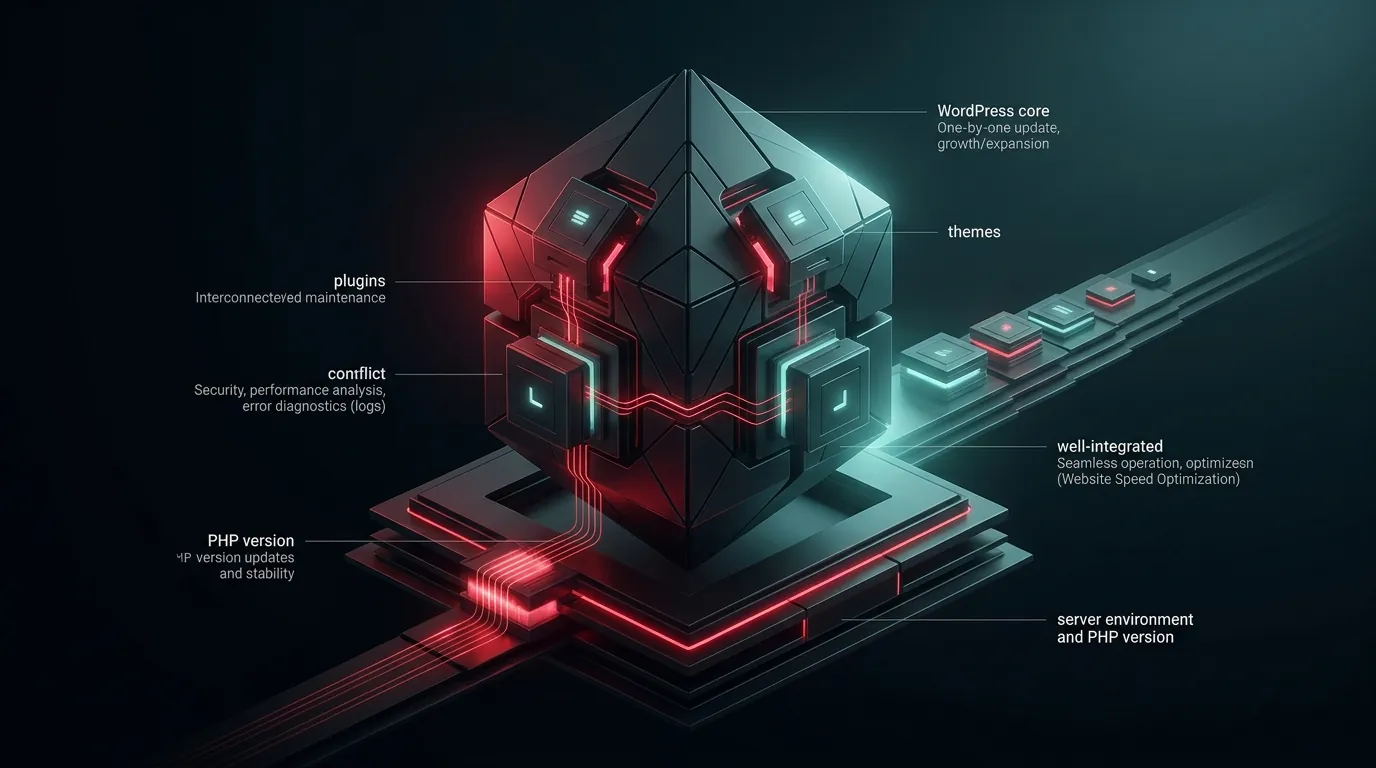
WordPress websites rely on multiple components working together:
- WordPress core
- themes
- plugins
- server environment
If these are not maintained properly, issues can occur such as:
- security vulnerabilities
- broken functionality
- slow performance
- website crashes
This is why ongoing Website Maintenance & Support is essential for any serious business website.
Server-Level Maintenance: PHP Version
One of the most important but often overlooked aspects of maintenance is the PHP version running on your server.
Why PHP Version Matters
- newer PHP versions are faster
- improved stability
- better security
- compatibility with modern plugins and themes
Outdated PHP versions can significantly slow down your website and expose it to security risks.
Keeping PHP updated is a key part of Website Speed Optimization and overall performance.
Before Any Update: Always Be Prepared
Before performing any updates, you should always ensure you have access to your website environment and backup.
This includes:
- Plesk
- cPanel
- FTP access
- server file manager
This is critical because if something breaks, you need to be able to restore or troubleshoot immediately.
You should also be able to:
- access website files
- read error logs
- restore backups if needed
Updating WordPress, Plugins and Themes
Updates are necessary for both security and performance, but they must be done correctly.
Best Practice: Update One by One
Always update plugins one by one instead of updating everything at once.
This allows you to:
- identify which update caused an issue
- minimize risk
- troubleshoot faster
The same logic applies to theme and WordPress core updates.
Common Issue: Website Stuck in Maintenance Mode
Sometimes after an update, your website may display a message saying it is under maintenance.
This happens when WordPress fails to complete an update properly.
How to Fix It
Simply remove the .maintenance file from your WordPress root directory using FTP or file manager.
This usually restores your website immediately.
When a Plugin Breaks Your Website
A common issue after updates is plugin incompatibility.
If your website crashes and you cannot access logs, you can follow this method:
Step-by-Step Recovery
- access your website files via FTP or file manager
- navigate to
/wp-content/ - rename the
pluginsfolder (for example toplugins-old)
This will deactivate all plugins.
Then:
- visit your website, which in most cases should load again
- go to
/wp-admin/plugins.php - rename the folder back to
plugins - activate plugins one by one
This helps you identify which plugin caused the issue.
Rolling Back a Plugin
If a plugin update causes compatibility issues, you can roll it back using:
WP Rollback – Rollback Plugins and Themes
This allows you to revert to a previous stable version.
PHP Issues and Quick Fix
Sometimes issues are not caused by plugins, but by PHP itself.
In some cases, restarting PHP can resolve the issue.
If you do not have access to restart PHP directly, a simple workaround is:
- change PHP version temporarily (for example 8.1 to 8.2)
- then switch back if needed
This effectively restarts the PHP environment and often resolves temporary issues.
Logs: Your Best Debugging Tool
Whenever possible, always check server logs.
Logs can help you:
- identify errors
- detect plugin conflicts
- understand crashes
This is often the fastest way to find the root cause of an issue.
Maintenance Also Affects Performance
Maintenance is not only about preventing crashes. It also affects website speed and long-term stability.
Outdated plugins, old PHP versions and poorly maintained environments often create hidden performance problems over time. If you want to understand that side better, you can also read our guide on WordPress Performance: What Actually Matters for Speed.
Best Practices for WordPress Maintenance
- keep WordPress core updated
- update plugins and themes regularly
- update PHP version
- always have backup access
- update plugins one by one
- monitor logs when issues occur
- test updates when possible
Final Thoughts
WordPress maintenance is not just about clicking the update button. It is about managing your website responsibly to ensure stability, performance and security.
With the right approach, you can prevent most issues before they happen and handle problems quickly when they occur.
If you want reliable ongoing support for your website, explore our Website Maintenance & Support service or contact ATH Development to discuss your needs.